
Tutorial · 1
Getting started
From the download to your first game, and a tour of the XFME Desktop window.
Installing
XFME Desktop runs on 64-bit Windows 10 (version 1903 or later) and Windows 11. Everything it needs is in its folder; there is no Visual Studio, Qt or MFME to install first.
- Download the ZIP and check its SHA-256 against the download page.
- Unzip the whole folder somewhere you can write to, such as
C:\XFMEorDocuments\XFME. Keep it out of Program Files: XFME does not need it. - Start XFME.exe. The first time, Windows SmartScreen may say it protected your PC, because XFME is not code-signed yet. Choose More info, then Run anyway.
To update, unzip the new version into a new folder. To remove XFME, delete its folder. Your settings and library live outside the program folder, so neither loses anything.
Your first game
- Make a copy of your MFME games. Like MFME, XFME writes into a game's folder while you play it: the machine's battery-backed memory, its statistics and XFME's quick-start snapshot. Point XFME at the copy, and keep a backup.
- XFME opens on the games library, empty the first time. Open the library menu (the three dots above the games list), choose Main game folder... and pick your copied games folder.
- From the same menu choose Scan the game folders. Your games appear in the list.
- Pick a game and press PLAY, press Enter, or double-click it.
A game's first start boots it as the real machine would, at high speed so you are not kept waiting; some systems take up to a couple of minutes. When you close the game, XFME keeps a snapshot, and from then on it starts almost at once. The games library covers the library in full.
A tour of the window
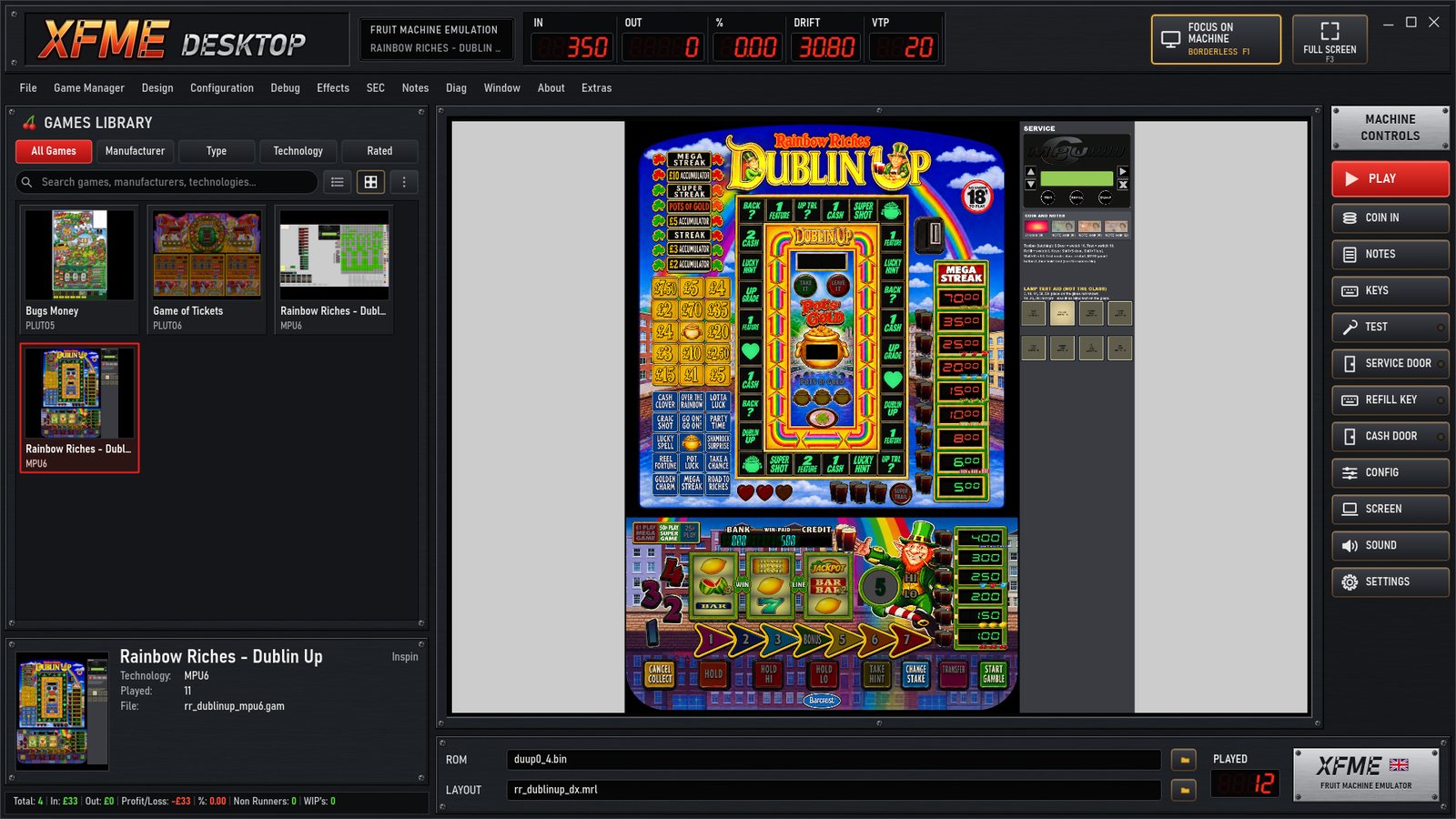
- The emulation plate. The running game's name and its system.
- The meters. MFME's meters for the running game: money in and out, the percentage, drift (or profit and loss) and VTP.
- Focus on machine (F1) and Full screen (F3). Esc brings the window back.
- MFME's menus. Everything MFME had, in the same places: Design, Configuration, Debug, Effects and the rest.
- The games library. Tabs for all games, manufacturer, type, technology and rated; a search box; list or picture view.
- The library menu. Game folders, the scan, pictures, the machine database and the MFME imports.
- The chosen game. Its picture, system, plays and file.
- The status line. The library's totals, as in MFME's Game Manager.
- The machine. The layout, playing, inside its bezel.
- Machine controls. Play, coins, notes, key hints, the switches and the settings: see Playing a game.
- ROM and layout of the running game; the folder buttons open the folder each one is in.
- Played. How many times this game has been played.
Where XFME keeps its files
Nothing is written into the program folder or into Windows itself. XFME's own files are here:
%LOCALAPPDATA%\XFME Desktop\library\the games library: names, ratings and the pictures it made.%LOCALAPPDATA%\XFME Desktop\GameManager\XFME's games list for each main game folder.%LOCALAPPDATA%\XFME Desktop\logs\xfme_errors.logproblems only: games that would not load, missing files, files that could not be saved.HKEY_CURRENT_USER\Software\MFME\ReloadedXFME's settings.
Type %LOCALAPPDATA%\XFME Desktop into the Explorer address bar to open the folder.
XFME and MFME 20.1 on the same PC
XFME does not read or change MFME's settings, and it never writes MFME's games list (gamesV20.0.db). If you want MFME's options, recent games and Game Manager folders in XFME, the library menu has Import MFME 20.1 settings... and Import a Game Manager list.... Both only read MFME's files.
Sounds and fonts
The machines' own sound chips are emulated. MFME's extra cabinet sounds (coin drop, reels, buttons, payout) come from MFME's DefaultSounds folder, which is not part of XFME: if you have MFME 20.1, copy its DefaultSounds folder beside XFME.exe. MFME's layout font MFME.ttf comes with XFME; layouts that use the Lithograph fonts need those fonts installed.